Home > Using PhotoTools 25 > Using the Masking Tools > Painting-In
Painting-In
Some of the effects in PhotoTools are designated as Paint-in effects.
You can tell if an effect is a Paint-in effect if it has the Paint-in
icon  next to it in the Result pane of the Library.
When you add a Paint-In effect to your stack you will see no difference
in the appearance of your image. You will need to select the Masking
Brush tool and paint in the effect where you want it to be. You will
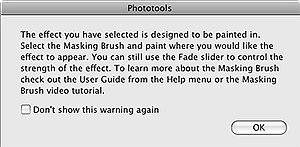
see an alert dialog telling you that you have added a Paint-In effect. Follow these steps to paint an effect in: next to it in the Result pane of the Library.
When you add a Paint-In effect to your stack you will see no difference
in the appearance of your image. You will need to select the Masking
Brush tool and paint in the effect where you want it to be. You will
see an alert dialog telling you that you have added a Paint-In effect. Follow these steps to paint an effect in:
|  |
 | The Masking Brush requires a video card that supports OpenGL 2.0 or higher. If PhotoTools detects that you have an incompatible video card it will warn you on launch and when you add a Paint-In effect. You can learn more about supported video cards here. |
See also