|
Home > Using PhotoTune > Lightroom Integration > Manual Use
Manual Use
To Apply PhotoTune with manual,
custom interaction to an image or group of images in Photoshop
Lightroom follow these instructions:
- Open Photoshop Lightroom
- Select an image(s)
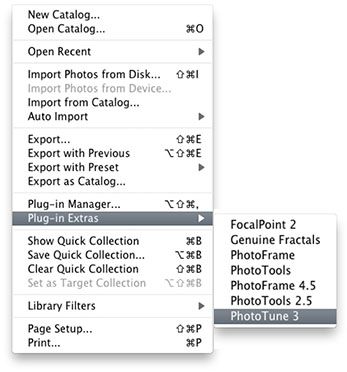
- Go to File > Plug-in Extras
- Select PhotoTune
- The PhotoTune for Lightroom dialog will appear, select the Open... button.
For Details on using the PhotoTune for Lightroom dialog look below.

|
Tip: If you have multiple images selected and you press the
Open...button you will be able to manually set-up the first image and then apply its settings to the remaining images in your selection. |
|
 |
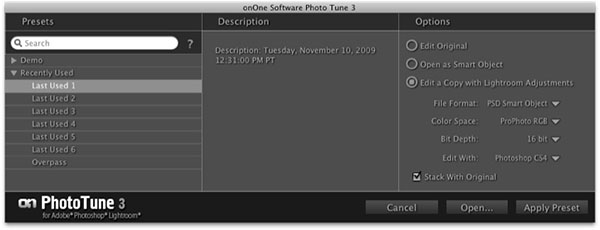
This the PhotoTune for Lightroom dialog. It consists of these controls:
- Search: Type in the name of a preset. The results will appear in the Search Results category.
- Category List: Lists your preset categories as well as a
special category for your Favorites. Click on the triangle to open each
category, just like the Library in PhotoTune.
- Description: Displays the description for the selected
preset. You can close this section by clicking on the triangle next to
the section title.
- Options: The controls how your image is treated before it is
sent to PhotoTune. You can select from editing the original, open the original as a Smart Object or a copy
with Lightroom Adjustments applied. If you select the copy option you may also select the file format, color
space and bit depth. If you have multiple versions of Photoshop
installed you may also select which version of Photoshop to use
PhotoTune in. The last option, Stack with original will place the
edited version of your image in the Lightroom catalog with the
original. You can close this section by clicking on the triangle next
to the section title. These settings are remembered.
- Cancel: Cancels PhotoTune for Lightroom
- Open...: Rather than applying a preset directly, this option
will open your image in PhotoTune so you can manually select the
frame(s) and options
- Apply Preset: Applies the selected preset to your image(s)

|
Note: If you have camera raw files in your selection you will not be able to use the Edit Original option. |
|
 |
See also
|