Home > Using FocalPoint 2 > Using the Focus Brush > Controls
Controls To use the FocusBrush you need to select it from the toolbar at the bottom of the window. When you select the brush, the icon will highlight and the tool will appear as a circular brush in the after preview window.
| 
| The brush will appear as two concentric circles.
- The outer circle represents the outer edge, or soft edge of the brush
- The inner circle represents the hard edge of the brush
The relationship between the hard edge and soft edge are controlled with the brush size and brush feather controls. | 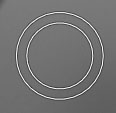 | The Brush Size slider adjusts the overall size of the brush. This is the outer circle of the brush.
- You can adjust the brush size using the left and right bracket keys ( [ or ] ) on your keyboard just like you would in Photoshop
|  | The Brush Feather slider adjusts how hard the edge of the brush is.
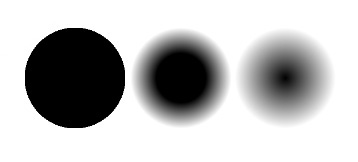
- At a low setting the brush will have a hard, distinct edge. The inner and outer circles will be close together
- At a higher feather setting the brush will have a softer, feathered appearance. The inner and outer circles will be farther apart. Generally, a soft-edged brush will blend the effect in or out in a more realistic way
- You can adjust the brush feather using the shift + left or right bracket keys ( [
or ] ) on your keyboard just like you would in Photoshop
| 
Zero Feather 50% Feather 100% Feather
| The Brush Opacity slider adjusts how much "paint" is applied with each brush stroke.
- At a low opacity it will take many strokes to paint-in or paint-out an effect. Low settings are good when fine control is required or you want the effect to be subtle
- Higher opacity settings are good when you need to quickly change the strength of an effect
- You can adjust the brush opacity using the number keys on your keyboard (1-0, 1=10%, 2=20% etc.) just like you would in Photoshop
| 
100% Opacity 50% Opacity 15% Opacity

|
|
| The Show Mask/Hide Mask Toggle makes the black and white mask visible so you can understand the effect of your mask painting.
- Keep in mind that white areas of the mask show blurred areas, while black areas show sharp areas.
- You can toggle the viewing of the mask using the command - M (Mac) or controls - M (Windows) keyboard shortcut
|
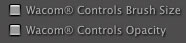
| The Masking Control in FocalPoint supports Wacom® pressure sensitive drawing tablets. This allows you to control both the brush size and opacity with your Wacom tablet.
- If Brush Size is selected the harder you press with your stylus the larger the brush will appear, up to the maximum size set by the Brush Size slider
- If the Opacity is selected the harder you press with your stylus the stronger, or more opaque the brush stroke will appear, up to the maximum opacity set by the Opacity Slider
|  | The Reset Mask button will reset the mask to completely white, revealing the current effect.
|
|
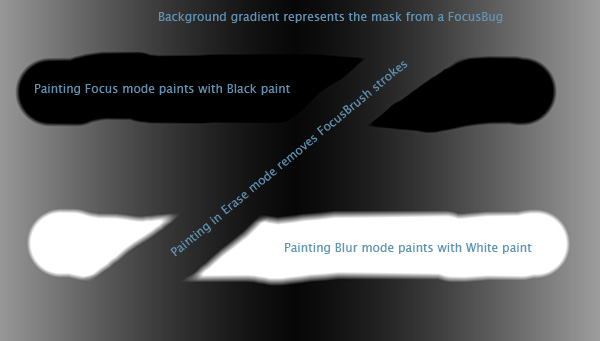
The Paint Focus/Paint Blur/Erase Toggle changes the "color" that the brush uses.
- In the Paint Focus mode, the brush paints in black, revealing the original image.
| - In Paint Blur mode, the brush paints with white paint which will hide the original image, allowing it to blur.
|
- In Erase mode the brush will work like an eraser and paint away both Paint Focus and Paint Blur strokes.
- You can change the paint mode by pressing the "x" keyboard short-cut
|
See also
|