Home > Using PhotoTune > Using Pro Mode > Using Presets
Using Presets
| Presets record all of the adjustments you make to an image in
PhotoTune. This includes all the settings in all of the modes. Presets
are useful when you want to apply the same settings to multiple images.
Presets can be found in the Presets pane located in the Pro Interface. Finding Presets You can find a preset in the preset pane. Presets like inside of categories you create. To open a category, click on the disclosure triangle to the left of the category title. When you mouse over a preset, its settings can be previewed on your image in the Navigator. Also if you linger over a preset, the author and description will be displayed in the tool-tip. Using a Preset To use a preset, simply double-click on it. It will adjust all of the image settings to match what was stored in the preset. You can use these presets inside of:
Saving a preset is simple. Once you have everything set the way you like, go to the File menu and select Save Preset. You can also press the plus icon located in the bottom of the Preset pane. The New Preset dialog will appear. There are several fields to complete including the preset name, the category, creator and description. In the category pull-down you can select which existing category the preset should saved into. You can also create a new category this way by selecting new category from the bottom of the list.
To delete a preset, just select the preset by single-clicking it, then press the minus icon in the bottom of the preset pane. | 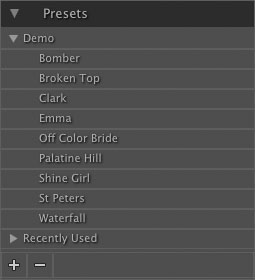 |

See also