Home > Using PhotoTune > Using Pro Mode > Adjusting Detail
Adjusting Detail
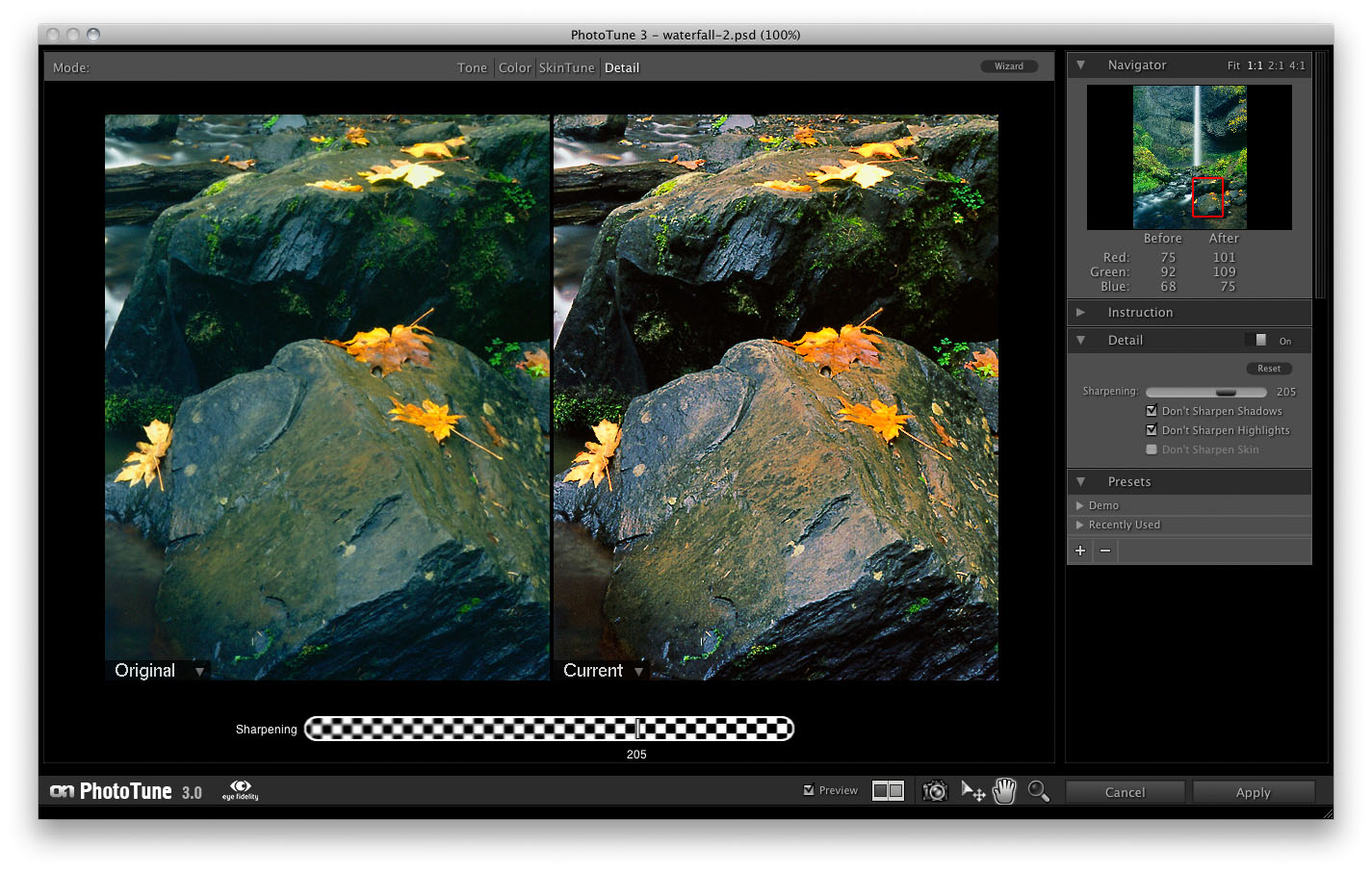
- On/Off Toggle: This toggle enables the sharpening effect.
- Sharpening: This Sharpening slider determines the amount of sharpening. Generally an amount of 50-150 is best more most images. You can also adjust the sharpening amount by sliding the preview image left and right.
- Don't Sharpen Shadows: When enabled, this prevents the sharpening effect from being applied to the shadow tones of an image, reducing the sharpening of noise.
- Don't Sharpen Highlights: When enabled, this prevents the sharpening effect from being applied to the highlight tones of an image, reducing the sharpening of noise in the sky as well as scanned negative film.
- Don't Sharpen Skin: When enabled, this prevents the sharpening of effect from being applied to the skin color range of an image, based on the color selected in the SkinTune mode.
 | Tips:
|
See also