Home > Using PhotoTools 25 > Menus > View
View
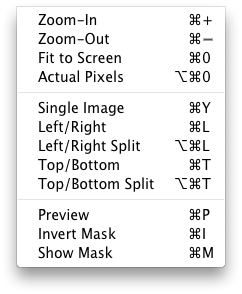
| Zoom In: Zooms the preview window in one increment. This will make the preview image larger. Zoom Out: Zooms the preview window out one increment. This will make the preview images smaller. Fit to Screen: This sets the preview image so that the entire image is on screen at once. Think of this as an overview of the entire image. This is the setting you will use most of the time. Actual Pixels: This sets the preview image so that it zooms to actual pixels or 1:1 also called 100%. This setting allows you to see every pixel in the image. This is useful when making precision adjustments. Single Image: Sets the preview area to show a single image. Left/Right: Sets the preview area to show a side-by-side compare of your before and after image. This is the default mode. Left/Right Split: Sets the preview area to show a split-screen preview of your before and after results on a single image. Top/Bottom: Sets the preview area to show a side-by-side compare of your before and after image. This is the default mode. Top/Bottom Split: Sets the preview area to show a split-screen preview of your before and after results on a single image. Preview: Toggles the preview of the after pane on/off to show the original. Useful when working in Single Image view mode. Invert Mask: Inverts the Mask on the current effect. Show Mask: Toggles the visibility of the Mask on the current effect. |
 |
See also