Home > Using PhotoTools 25 > Using the Effects Library > Presets > Saving Presets
Saving Presets
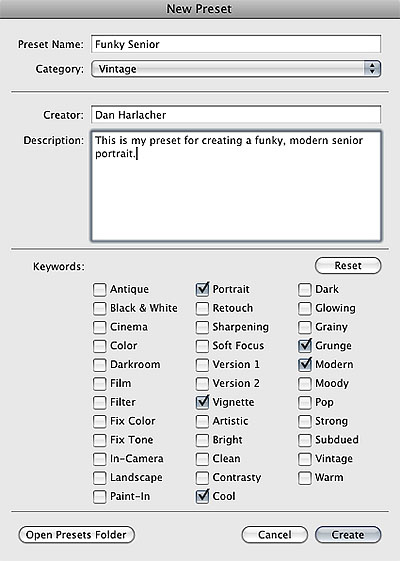
Saving a preset is simple. Once you have a stack that you wish to save, go to the File menu and select Save Preset. You can also press the plus icon located in the top of the preset column. The New Preset dialog will appear (shown to the right). There are several fields to complete including the preset name, the category, creator, description and keywords. In the category pull-down you can select which existing category the preset should saved into. You can also create a new category this way by selecting new category from the bottom of the list. |
 |
 | You can edit a preset's name, creator, description or keywords by selecting it and then right-clicking on it and selecting edit preset. If you want to edit the effects in a preset, load it into your stack, make your adjustments and then re-save the preset with the same name and location. |
See also