Home > Using PhotoTools 25 > Using the Effects Library > Results Pane
Results Pane
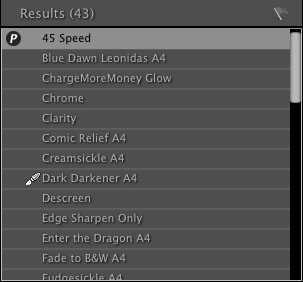
| The second column of the Effects Library is the results pane. It works the same no matter which mode the Library is in. Its job is to display the results of your browsing and searching. The results may contain both effects and presets. You can click on an effect or a preset to learn more about it in the Details pane. You can double-click on an effect or preset to add it to your current stack, allowing you to preview it on your image. There are a couple of icons that may appear on the same line as the effect or preset name:
|  |


See also