Home > Getting Started > User Interface
User Interface
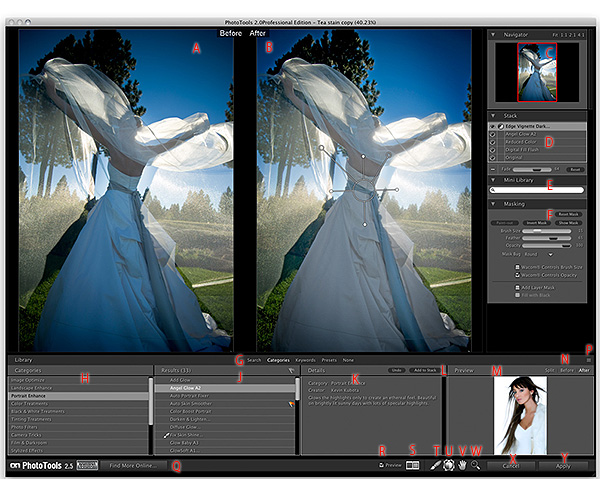
A - Before Preview Window: Shows your original image.
B - After Preview Window: Shows your image with the current stack of effects applied.
C - Navigator Pane: Shows a birds-eye view of the document. Allows you to zoom and pane the preview areas.
D - Stack Pane: Shows the current stack of effects, allows you to change effect order and fade.
E - Mini-Library Pane: Shows your favorite effects and presets so you can quickly add them without the main library.
F - Masking Pane: Contains the controls for the masking brush as well as the Photoshop layer masks.
G - Library Mode Toggle: Toggles the Library mode from Search, Categories, Keywords, Presets or None.
H - Library Mode Pane: Currently displaying the Search Mode but changes based on the the Library mode.
J - Library Results Pane: Lists the results of the current search. May contain effects and presets.
K - Library Details Pane: Displays information about the currently selected effect. Includes effect options.
L - Add to Stack & Undo buttons: Use these buttons to add an effect or preset to the stack as well as to undo.
M - Library Preview Pane: Displays a before/after preview of the current effect.
N - Library Preview Toggle: Controls if the Library preview shows the before, after or split-screen view.
P - Library Pane Size Handle: Click and drag this handle to resize the height of the Library Pane.
Q - Find More Online button: Click this button to go the the PhotoTools online portal page containing free presets, tutorials, updates and news.
R - Preview on/off Toggle: Toggles the After preview pane on and off. When working in single image mode you can use this to preview an effect on and off.
S - Preview Mode Toggle: Toggles the preview windows through their different modes, either single image, left/right compare, left/right split, top/bottom compare and top/bottom split.
T - MaskingBrush Tool: Select this tool to selectively paint an effect in or out.
U - MaskingBug Tool: Select this tool to adjust the MaskingBug
V - Hand (Pan) Tool: Select this tool to move the image within the preview window.
W - Zoom (Magnify) Tool: Select this tool to change the size of the image in the preview window.
X - Cancel Button: Press this button to cancel PhotoTools and return to the host application.
Y - Apply Button: Press this button to apply the current stack to your image and return to the host.
 |
Tip: If you work on a smaller display you can open the close the library with the Command-E (Mac) or Control-E (Win) short-cut. This gives the preview more room so you can use the Masking Brush. |
See also