Home > Using PhotoTools 25 > Batch Processing > File Type Tab
File Type Tab
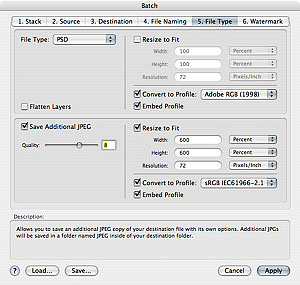
| The File Type tab allows you to determine the file type of the new files to be created as well as their size, resolution and color profile. You can also have PhotoTools create an additional JPEG as well as the new files. The first option is File Type. You can select from Same as Source, PSD (Photoshop native file), TIFF or JPEG. If you use the same as source option, PhotoTools will save the new files in the same format as the original file. For camera raw files, this option will create PSD files instead. Selecting one of the other formats will create that type of file. For each format selected there may be additional options to select. For example if you select JPEG you can determine the Quality (compression ratio) of the file. For TIFF and PSD files, you have the option of flattening layers and for TIFF you can also enable LZW compression. You can also opt to resize the new files. Simply turn on the resize to fit option and enter the maximum width and height. These dimensions can be in pixels, inches, centimeters or percentage. The proportions of the image will always be maintained. The image will be resized to fit within the dimensions entered. When resizing files, PhotoTools will use the default interpolation algorithm selected in your Photoshop preferences. You can also adjust the resolution of your files. If you enter no resolution, the current file's resolution will be used. You can also convert the new files to a destination color space. From the Convert to Profile pop-up, select the ICC profile you wish to use. In most cases, select the embed profile option as well to embed the profile so that others that open the new files will be able to view them with the correct color management. Saving Additional JPEG You can also save an additional JPEG file from your new batch processed files. When saving an additional JPEGs, you have the same options for resizing and color space as you do when creating new the primary file. Your additional JPEG files will be saved in a folder labeled JPEG inside your destination folder. |
 |
See also