Home > Quick Start Guide > Bride Example
Bride Example
PhotoTools also has a wide range of effects that can be used to enhance portrait images. In this case we will start with this studio bridal portrait and add a professional touch with effects from the Kevin Kubota Professional Edition catalog.Step 1. Open the image in PhotoTools. | 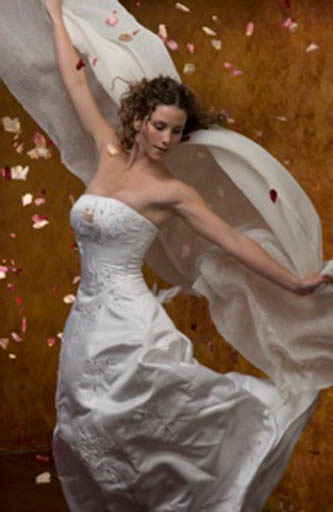 | |
Step 2. We will start out the same as we did with the Waterfall image, using the Auto Tone & Color effect. Notice the Fade is set lower than 100%. Often with portrait images color and tone correction will be more subtle than with landscape or general images. | 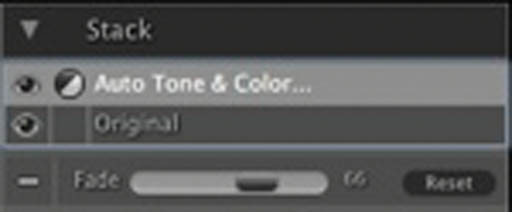 | 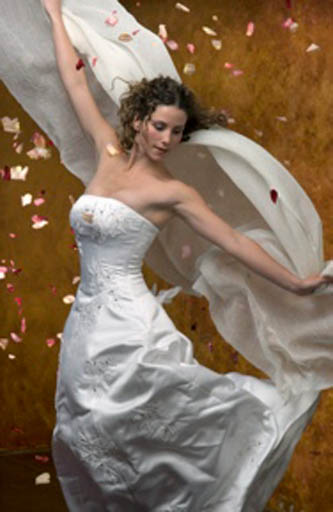 |
Step 3. Now we added the Auto Portrait Fixer effect from the Portrait Enhance category. This effect adds a subtle skin smoothing effect as well as a boost in colors other than skin. Be sure to zoom to 100% and adjust the Fade slider for the best results. | 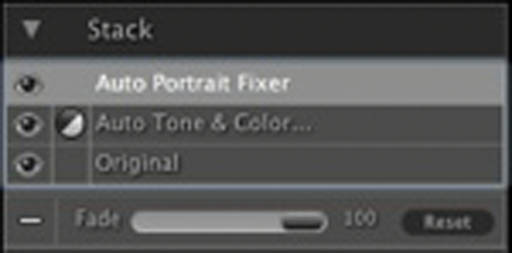 | 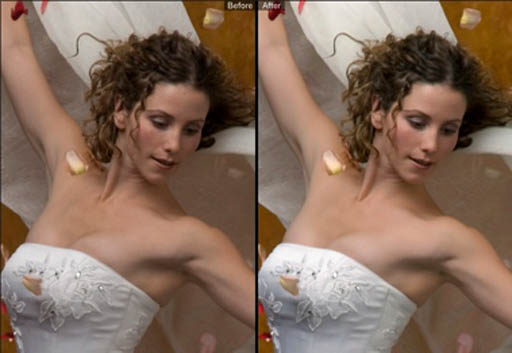 |
Step 4. Now to spice things up bit, let's add the Hollywood Glow effect from the Kubota Professional Edition category (you need PhotoTools Professional Edition to use this effect). This adds a contrast boost and glow reminiscent of old Hollywood movie starlets. | 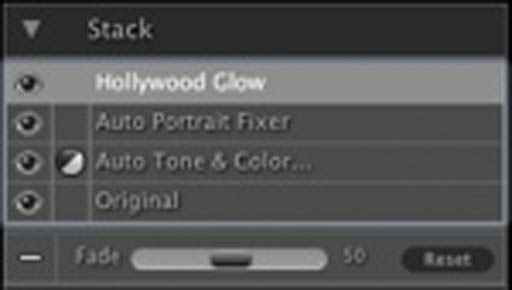 | 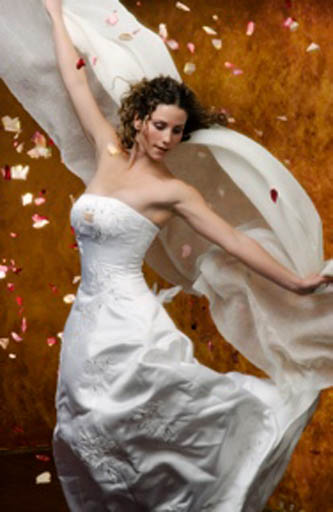 |
| Step 5. Last step. Let's add a soft, selective focus edge to the image. This will blur the edges of the image, much like a selective focus lens or filter. I selected the Radial option to add a little more motion to the out-of-focus area. Like most effects, I used the Fade slider to control the strength of the effect. | 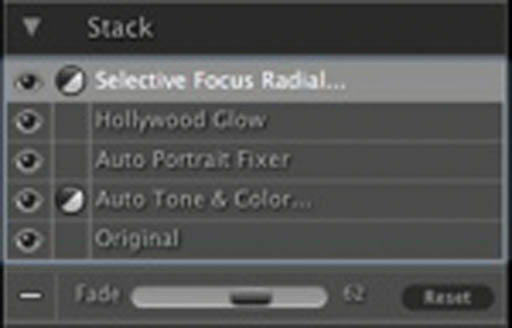 | 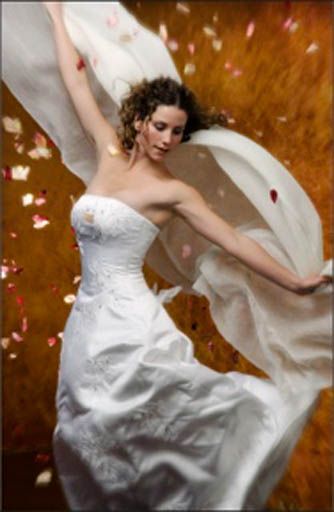 |
See also