Home > Using PhotoTools 25 > Using the Effects Stack
Using the Effects Stack
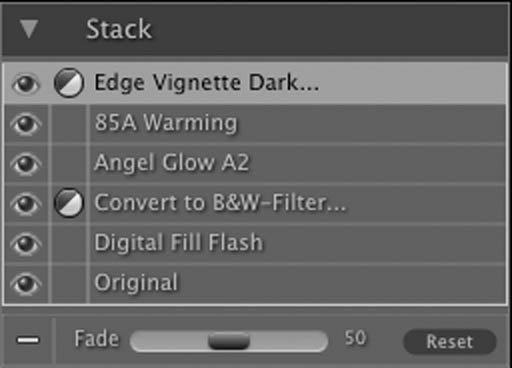
| When you add an effect to your image it will appear in the Stack pane. The Stack works similar to the Layers and History palettes in Photoshop. At the bottom of the Stack is your original image. Each effect you add will layer on top of the original. The Stack allows you to add up to sixteen effects to your image. You can move forward and backward in time by selecting different effects in the Stack. For example if you had a Stack with the original and three effects applied, you could go back to the first effect by selecting it in the Stack. The second and third effects will appear disabled and your preview will show only the results of the original with the first effect applied. You can then click on the third effect, the most recently applied, and the second and third effects will appear active again and the preview will show the results of all three effects. The results of each effect in PhotoTools are cumulative, so the results of the first effect are passed to the second effect and so forth. It is best to work with PhotoTools in a step-by-step process, knowing that the results from each step are the starting point for the next effect. This means that when selecting the effects to apply, think about the workflow processes you would use in Photoshop. It is best to make color and tonal adjustments first, followed by special effects and finish with final touches such as vignettes and sharpening. Thinking of the proper steps to add effects in PhotoTools will give you better and faster results. |
 |
 |
Tip: You can clear all the effects from the Frame Stack at once by clicking on the reset button. |
See also