Home > Using PhotoFrame > Menus > View
View

Note: The controls in the View menu apply to working in the Preview window only. They do not effect the Library window.
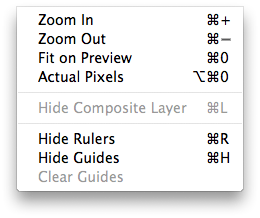
| Zoom In: Zooms the preview window in one increment. This will make the preview image larger. Zoom Out: Zooms the preview window out one increment. This will make the prevewi images smaller. Fit on Preview: This sets the preview image so that the entire image is on screen at once. Think of this as an overview of the entire image. This is the setting you will use most of the time. Actual Pixels: This sets the preview image so that it zooms to actual pixels or 1:1 also called 100%. This setting allows you to see every pixel in the image. This is useful when making precision adjustments or adjusting texture opacities. Show/Hide Composite Layer: This command will disable composite viewing, showing your PhotoFrame results with only the target layer and will not show the layers above or below your target layer. Show/Hide Rulers: Shows or hides the rulers. Show/Hide Guides: Shows or hides the guides. Clear Guides: Clears (removes) any guides that have been placed. |
 |
See also