Home > Getting Started > Getting Around the Interface > Preview Interface
Preview Interface
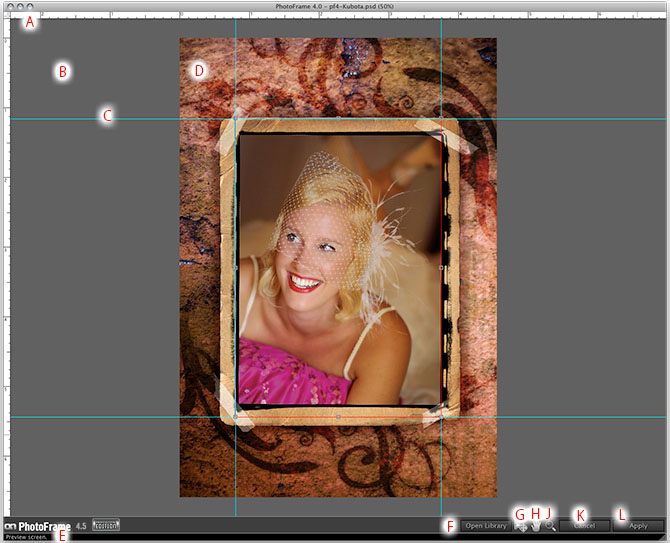
A - Rulers: Use the rulers to align elements accurately.
B - Preview Area: This is the paste board area of the preview window. You can change it's color in the preferences.
C - Guide: You can create a guide by clicking and dragging in the rulers.
D - Preview Image
E - Tool-tip bar: Displays tool-tips for the control the cursor is over.
F - Open Library: Press this button to open the Library.
G - Move Tool: Use this to move and resize the current element.
H - Pan Tool: Use this to move the preview image within the preview window.
J - Zoom Tool: Use this to zoom-in on the preview image.
K - Cancel Button: Cancels PhotoFrame and returns to the host application.
L - Apply Button: Applies the current Frame Stack to your image and returns to the host application.
See also