Home > Using PhotoFrame > Preferences
Preferences
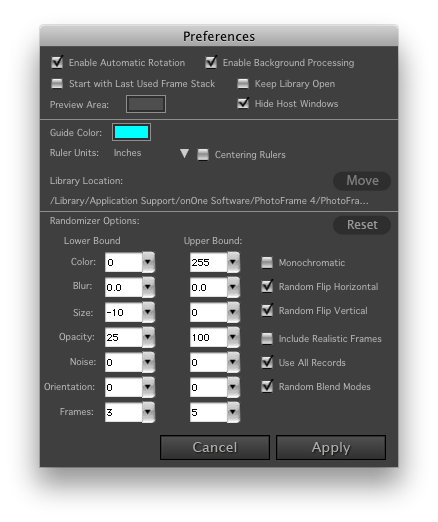
| The preferences dialog contains several settings that are remembered from session to session. They control the way certain features work in PhotoFrame. You can access the preferences dialog from the Photoshop menu (Mac) or Edit menu (Win). Enable Automatic Rotation: When enabled this feature will automatically rotate design elements and presets to match the orientation of your image. On by default. Enable Background Processing: When enabled PhotoFrame will work on processing the final results so that it will be faster when you press the apply button. On by default. Start with Last Used Frame Stack: When enabled PhotoFrame will automatically add your last used stack of frames each time you open it. This is the way PhotoFrame 3 worked. Off by default. Keep Library Open: When enabled the Library will remain open when adding or replacing a frame in the stack. This is for users with a second or large display who wish to have the Library open all the time. Default is off. Preview Area: Click in the color pop-up to change the Preview window background color. Hide Host Windows: When enabled, PhotoFrame will hide all of Photoshop's windows while you are using it. This is on by default. Guide Color: Color pop-up allows you to change the color of the guides. Ruler Units: Sets the unit of measure for the rulers. This can also be set from the ruler contextual (right-click) menu. Centering Rulers: When enabled the rulers measure from the center of the image out in all directions rather than from the upper-left corner. Off by default. Library Location: Displays the path to the current PhotoFrame library. The library contains all of the frame and design element content and database. Depending on the number of frames you have installed this can take well over 1GB of hard drive space. If you run low on hard drive space you can use the Move button to select a new location for the Library. PhotoFrame will automatically move the Library contents to its new location.
Randomizer Options: See the Adding a Random Frame page for details. |
 |

See also