Home > Getting Started > Getting Around the Interface > Palette Interface
Palette Interface
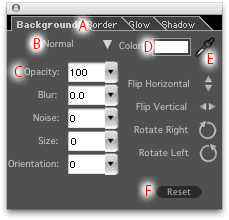
PhotoFrame has several control palettes. While the controls on each palette are slightly different the diagram below explains the most common elements that you may find on most palettes.
The palettes in PhotoFrame can be nested together by dragging a palette on top of another. You can also seperate nested palettes by pulling them apart. Simply click and drag a palette tab away from the main palette to unnest it. PhotoFrame will remember your palette options and locations automatically.
| A - Palette Tab: Click and drag to move or nest palettes B - Blending Mode: This changes the Blending Mode of the element that the palette controls C - Opacity: This changes the opacity of the element that the palette controls D - Color: Click to bring up the color picker to change the element color E - Eye Dropper: Select the dropper and click on a color in the preview image to change the elements color to match F - Reset: Press this button to reset the palette options to the defaults |
 |
Learn more about each Palette here
Frame Stack Palette
Adding an Instant Frame
Options Palette
Background Palette
Border Palette
Glow Palette
Shadow Palette
Edge Palette
Bevel Palette
See also