Home > Using PhotoFrame > Using the Library > Narrowing your Selection
Narrowing your Selection
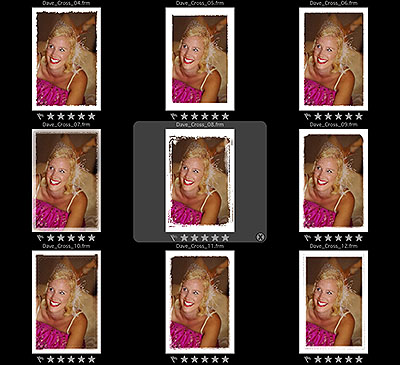
| The thumbnail area of the Library works like a light-table view in an image browser. You can use the thumbnail view to select multiple frames and elements and perform tasks such as removing them from the current view, adding to the Frame Stack or deleting them from the PhotoFrame database. You can tell if an element is selected by the gray rounded rectangle surrounding it. For example the center image in the illustration to the right is selected while the other elements are deselected. You can select multiple frames by:
You can remove the selected frames from your current view by clicking the small "X" icon in the bottom right corner of any selected element thumbnail. This does not remove the elements from PhotoFrame, it just hides them temporarily making it easier to narrow down your thumbnails until you find the element you are looking for. |
 |
See also