Home > Using PhotoFrame > Glow Palette
Glow Palette
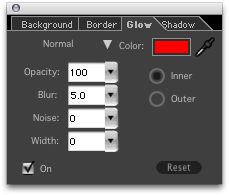
The Glow palette allows you to work with glow effects. Glows allow you to add color or highlights that can either soften a look, or add bold contrasts. Glow effects for the selected frame are disabled until the Glow palette is turned on.
- Blend Mode: Selections on this menu produce the same effect as when applied in Photoshop.
- Color Picker: Sets the glow color. See Color Picker.
- Eyedropper: Allows you to sample a color from the image. Click and drag the Eyedropper across the image to select a color interactively.
- Opacity: Determines the percentage of the image that shows through the glow. You can think of this as a strength control. Uses a range from 0 to 100%, where 0 represents no opacity (the glow is completely transparent).
- Blur: Determines how much the edge is softened. Uses a range from 0 to 99.9, where 0 represents no edge softening.
- Noise: Determines the amount of noise (grain) that is added to the glow. Zero indicates no noise.
- Width: Determines the thickness of the glow.
- Inner/Outer: Selects if the glow is on the inner or outer edge of the element. Only one option can be selected.
- Reset: Click to revert to the factory default settings for this palette.
- On: Toggles the effect on and off.
|
 |
See also
|