Home > Using PhotoFrame > Using the Library > Personal Elements > Creating Elements
Creating Elements
Users can create their own design elements and add them to PhotoFrame. A good example would be converting your logo to a design element so you can easily add it to an image. Follow the steps below for creating your own basic element from a logo or signature file. This technique will create single colored element and you can control the color from the background palette.
 |
Open your logo in Photoshop |
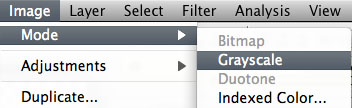 |
Convert your logo to grayscale by selecting File > Mode > Grayscale |
| Make sure your logo is black on a white or transparent background. You may need to increase the contrast to achieve this. | |
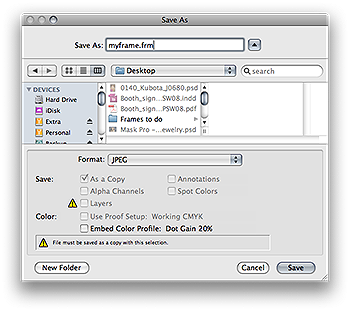 |
Save your logo as a JPG file with a .frm extension |
Creating RGB Elements
Creating RGB elements, also known as realistic frames is a bit more complicated. Each RGB element consists of three files:
- The frame image, the regular RGB pixels
- Inner mask , a grayscale mask that masks the inner area of the frame
- Outer mask, a grayscale mask that masks the outer area of the frame
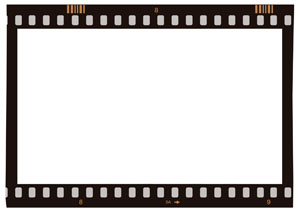 |
Frame image the regular RGB pixels. The area inside and outside the frame should be white or transparent. Save this file as an RGB JPG with a .frr extension. It is important that the main file name is the same for all three elements, for example myframe.frr |
 |
Inner mask A grayscale mask that masks the inner area of the frame. The area inside the frame, the hole where the image should go, should be white. The rest of the image should be black. Save this file as a grayscale JPG with a .fri extension. It is important that the main file name is the same for all three elements, for example myframe.fri |
 |
Outer mask A grayscale mask that masks the outer area of the frame. The area outside of the frame, think of it as the background, should be white. The rest of the image should be black. Save this file as a grayscale JPG with a .fro extension. It is important that the main file name is the same for all three elements, for example myframe.fro |
When you add RGB frames only one entry will be added to the PhotoFrame database, not three, but you need to add all three files at the same time. If you which to add your own RGB background elements follow the steps above but make the inner and outer mask files completely black. If you which to create RGB adornments set the fri file to completly black and the from to black with white masks for the adornment.
See also