Home > Using PhotoFrame > Border Palette
Border Palette
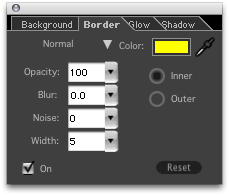
The Border palette allows you to create a border for the selected element. Border effects are applied at the edge of the element where it meets the background, as either an inner or an outer border. Think of the border as a stroke in Photoshop. Border effects for the selected element are disabled until the Border palette is turned on.
- Blend Mode: Selections on this menu produce the same effect as when applied in Photoshop.
- Color Picker: Sets the border color. See Color Picker.
- Eyedropper: Allows you to extract a border color from the image. Click and drag the Eyedropper across the image to select a color interactively.
- Opacity: Determines the percentage of the image that shows through the border. Uses a range from 0 to 100%, where 0 represents no opacity (the background is completely transparent).
- Blur: Determines how much the edge is softened. Uses a range from 0 to 99.9, where 0 represents no edge softening.
- Noise: Determines the amount of noise (grain) that is added to the border. Zero indicates no noise.
- Width: Determines the thickness of the border.background.
- Inner/Outer: Selects if the border is on the inner or outer edge of the element. Only one option can be selected.
- Reset: Click to revert to the factory default settings for this palette.
- On: Toggles the border effect on and off.
| |
 |
See also
|