Home > Using PhotoFrame > Bevel Palette
Bevel Palette
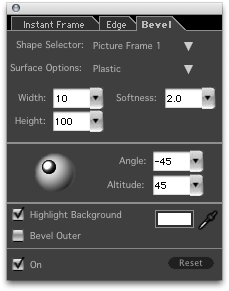
The bevel palette allows you to add a 3D look to flat elements. It is similar to the emboss controls of Photoshop. It is typically used with instant frames to create mattes that look similar to what you would get from a frame shop.
Ten pre-defined shapes on the Bevel palette provide the basis for creating any number of 3D bevel effects on your frames:
- Flat
- Round
- Slope
- Double
- Half Pipe
- Triangle
- Ramp
- Picture Frames 1 through 3
To those shapes you can apply the following Surface Options:
- Chrome
- Heavy Metal
- Metal
- Plastic
- Rubber
- Matte
Use the other controls on the palette to manipulate the shape and surface of the bevel to achieve just the look you want. Bevel effects for the selected frame are disabled until the Bevel palette is turned on.
- Shape Selector: Determines the type of bevel.
- Surface Options: Determines preset surface property parameters.
- Softness: Determines how much the bevel is softened. Uses a range from 0 to 99.9, where 0 represents no softening.
- Width: Adjust bevel width, from 0 to 100%.
- Height: Adjusts bevel height, from 0 to 100%.
- Light Direction Controls: Drag the highlight knob around the sphere to adjust the direction and inclination of the light source, or enter absolute values in the numeric fields.
- Highlight Background: When checked, applies highlighting effects to the background.
- Bevel Outer: When checked, applies bevel effects to the outer edge of the image.
- Highlight Color Selection Tools: Sets the bevel highlight color.
- Reset: Click to revert to the factory default settings for this palette.
- On: Toggles the effect on and off.
|
 |
See also
|