Home > Using PhotoFrame > Background Palette
Background Palette
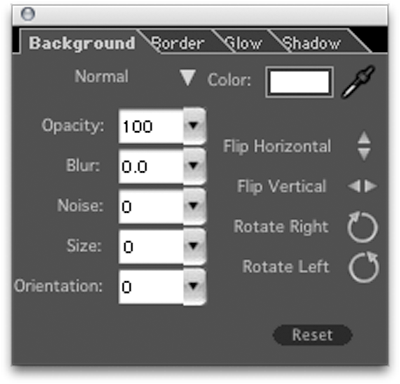
The Background palette allows you to work with the element background and positioning. From the Background palette you can select a background color, use the opacity controls to let a percentage of the image bleed through as the background or change the blending mode. You can vary the size of the element to show more or less of the background, as well as rotate the element and flip it horizontally or vertically. The background palette is the one you will use the most in PhotoFrame.
- Blend Mode: Selections on this menu produce the same effect as when applied in Photoshop.
- Color Picker: Sets the background color. See Color Picker Also allows you to set the background to None or Transparent.
- Eyedropper: Allows you to extract a background color from the image. Click and drag the Eyedropper across the image to select a color interactively.
- Opacity: Determines the percentage of the image that shows through the frame. Uses a range from 0 to 100%, where 0 represents no opacity (the background is completely transparent).
- Blur: Determines how much the edge is softened. Uses a range from 0 to 99.9, where 0 represents no edge softening.
- Noise: Determines the amount of noise (grain) that is added to the background. Zero indicates no noise.
- Size: Determines the size of the background. This works proportionally and is often a faster way to resize and element than to use the Move Tool and corner handles.
- Orientation: Allows you to rotate the frame.
- Flip Horizontal/Vertical: Click to flip the frame in the horizontal plane or the vertical plane .
- Reset: Click to revert to the factory default settings for this palette.
|
 |
 |
Tip: Changing the blending mode and opacity are great ways to blend an effect into an image to make it look more realistic.
- Try the overlay or softlight options when working with textures or adornments.
- Try Multiply or Screen when working with Instant Film edges.
|
See also
|