Home > Getting Started > Adjusting an Element
Adjusting an Element
|
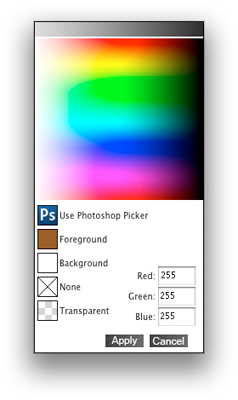
Once you have added a element to your image you will probably want to adjust it. Start by adjusting the background color. The background color is usually the color overlay outside of a frame. If you have added an adornment or a texture the background color will often be the color of the element. For some element types you may want to select transparent if you want to background color. You can adjust the background color and options in the background palette by opening the color selector. In the color selector you can select a color by clicking in the color array, typing in RGB color values or by clicking on the Photoshop color picker option to use the standard Photoshop color dialog. You can also adjust the opacity and blending mode of an element to have it blend into your image in a more realistic way. |
 |
|
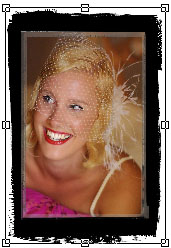
Next you will want to adjust the size and position of the element. You can do this with the size slider in the background palette or by moving your mouse over the preview area you will see corner handles appear on the edges of the element. You can then click and drag to change the size, rotation and position of the element. Sometimes you might want to adjust the size and position of the image under the element as well. You can do this by selecting the image layer at the bottom of the frame stack and then using the same size and position options |
 |
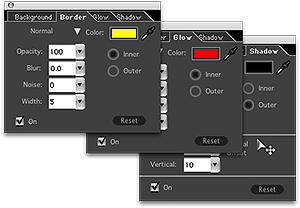
| You can then try adjusting some of the other options in the border, glow and shadow palettes if you like. You can also open the Library again to either add another element to your frame stack or to replace your current element. |
 |
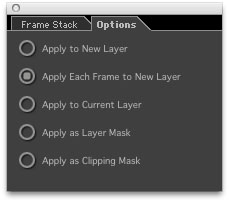
| Once you are happy with your creation you can apply it your image and send it back to Photoshop. First, be sure to check your Options palette and make sure you have the option selected that you prefer. The default in PhotoFrame 4.5 will apply your elements as a new layer in Photoshop. (Keep in mind that if you are working in Photoshop Lightroom or Aperture that the results will always apply directly to your image) Then press the Apply button in the bottom right corner. Congratulations, you made your first creation with PhotoFrame 4.5 |
 |
See also