Home > Using PhotoFrame > Frame Stack Palette
Frame Stack Palette
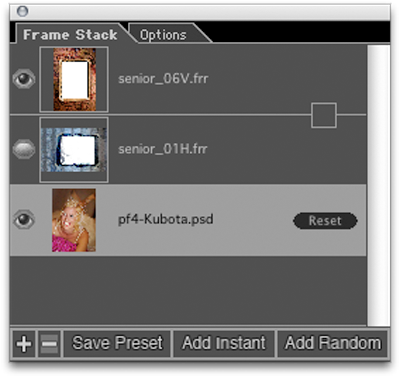
| In PhotoFrame, each element you add to the image creates a separate" layer". These layers are displayed in the Frame Stack palette. PhotoFrame layers work very much like Photoshop layers: you can show or hide element layers, shuffle the order so that an element will mask or be masked by other elements, add and delete layers, and apply effects to one layer without affecting the others. To show or hide an element layer: • Click the Eye icon for the desired element. To reorder elements on the element Layers list: • Select the element to be moved, then drag it up or down the list and release at the new location. To remove a layer: • On the element Layers list, select the element to be removed, then click the minus icon located below the list. To add another element to the Frame Stack: • Click on the plus button to open the Library. If the Library is already open you can select an element and press the Add Frame button or just double click on the frame thumbnail. To link layers together: • Click on the empty box between layers to link the two adjacent layers together. This allows you to size and move multiple layers in unison. Save Preset: This button will open the save preset dialog where you can save the current stack as a preset so you can use it again easily. Add Instant: This button will add an instant frame and will open the Instant Frame palette if it is not open. Add Random: This button will clear the current stack and and add a random group of elements. See Adding a Random Frame. At the bottom of the Frame Stack is the image layer that you selected in Photoshop. You can select the image layer and use the move tool or the size and orientation tools in the Background palette to resize and reposition the image to fit a thick frame better. This is useful for the layout series. You can also drag design elements under the background, or target layer as well. This is useful if you wish to place a background behind a floating layer. |
 |
 |
Tip: You can clear all the elements from the Frame Stack at once by option (Mac) alt (Win) clicking on the minus icon. |
See also