Home > Using Genuine Fractals > Using STiNG Files
Using STiNG Files
What is a STiNG File?
STiNG (.STN) files are a special compressed file that Genuine Fractals can create. STiNG files allow you to save a single resolution independent file that can be scaled to any size when it is opened. This can help reduce the amount of space that is required for storage and bandwidth needed for transmission. Because Genuine Fractals 6 is fully integrated into Photoshop as an automation plug-in, you can now use Genuine Fractals to scale any image supported in Photoshop without having to encode it to STN (“Sting”) format. Simply use the Genuine Fractals plug-in for cropping and scaling, then close the Genuine Fractals window and save images – in whatever format you choose – as you normally would within the familiar Photoshop interface.
Saving a STiNG File
While it is no longer necessary to save images to STN format before you can scale them with Genuine Fractals, some users may wish to do so. Any 8- or 16-bit RGB, CMYK image and any 8-bit grayscale image can be saved in STN format. The Genuine Fractals’ STN format is available on the list of formats in the Save As… dialog box in Photoshop, shown below. See your Adobe Photoshop documentation for more information on saving files.

Note: STiNG files do retain embedded icc color profiles but do not retain layers, clipping paths or alpha channels.
To save a file as a STiNG format follow these instructions:
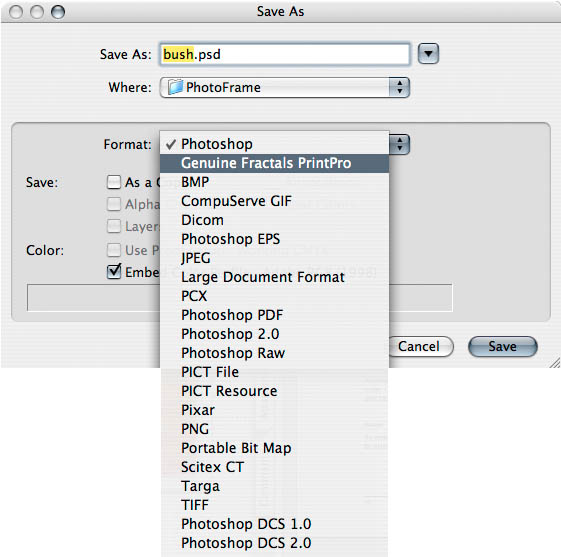
3. Select between Lossless and Standard compression in the dialog that appears.
Lossless compression creates a file that is approximately half the size of the original file that is identical pixel by pixel to the original file. Standard compression creates a file that is approximately 1/5th the size of the original file and is visually lossless. 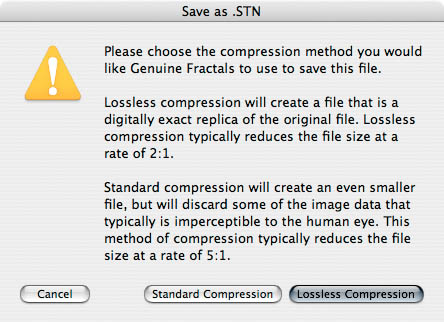
Opening a STiNG File
| To open a STiNG file use the open command from inside of Adobe Photoshop or Photoshop Elements. When you open a STiNG file you will be presented with the Genuine Fractals Express dialog. It will show the original size of the file when it was saved. If you simply want to open the file at its original size click on Apply. If you want to change the size of the file you can enter new values into the Pixel Dimensions or Document Size panes to resize the STiNG file on-the-fly as you open it. | 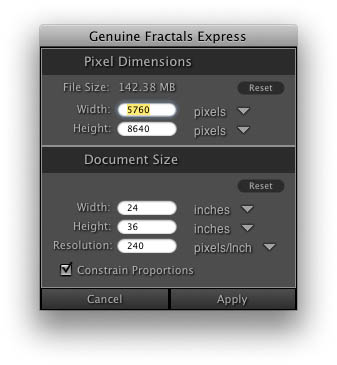 |
See also