Home > Using Genuine Fractals > Using the Preview Window > Crop Tool
| Crop Tool |
 |
The Crop Tool can be selected by clicking on the Crop Tool icon in the tool bar. When it is selected, the cursor will change and the the icon in the toolbar will have a white glow.
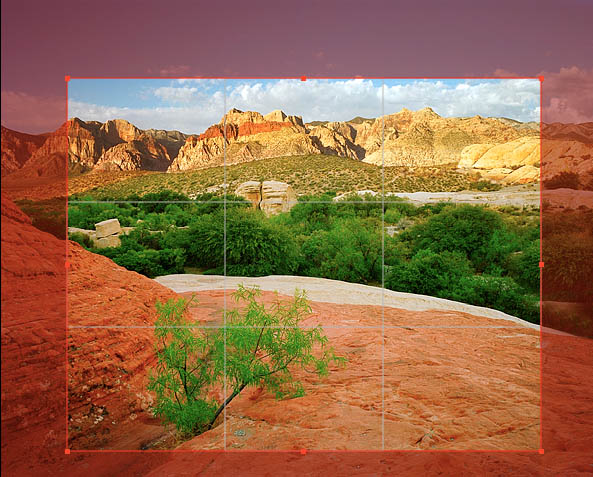
- With the Crop Tool you can manually crop your image by clicking and dragging a box.
- The corner handles resize the the crop box. You can see the crop size in the document size pane. Clicking and dragging in the middle will move the crop box.
- After defining the crop box you can change the Pixel Dimensions and Document Size fields to resize your image. Note that the proportions of the crop box are locked and
that you can only change the proportions by dragging on one of the corner handles using the crop tool and not by changing the values in either the Pixel Dimensions or
Document Size panes.
- You can also use the crop tool to resize a document size preset crop box.
- If you make a mistake and don't want to crop the image, just click outside the crop box with the crop tool.
|
 |
 |
Tip: Its usually better to use a document size preset than to crop manually. That way you can guarantee the document size you want. |
See also
|