Home > Using Genuine Fractals > Photoshop Lightroom Use > Manual Use
Manual Use
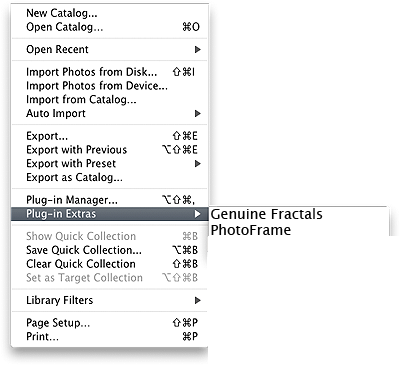
To apply Genuine Fractals with manual, custom interaction to an image or group of images in Photoshop Lightroom follow these instructions:
|
 |

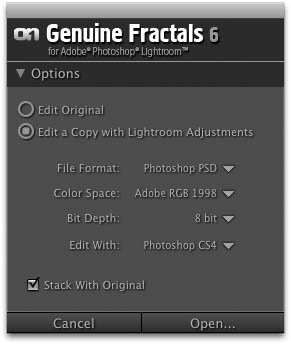
| This the Genuine Fractals for Lightroom dialog. It consists of these controls: Options: This controls how your image is treated before it is sent to Genuine Fractals. You can select from editing the original, a copy with Lightroom Adjustments applied or a just a copy. If you select either of the copy options you may also select the file format, color space and bit depth. If you have multiple versions of Photoshop installed you may also select which version of Photoshop to use Genuine Fractals in. The last option, Stack with original will place the edited version of your image in the Lightroom catalog with the original. You can close this section by clicking on the triangle next to the section title. These settings are remembered.
|
 |

See also