Home > Getting Started > Understanding the Interface
Understanding the Interface
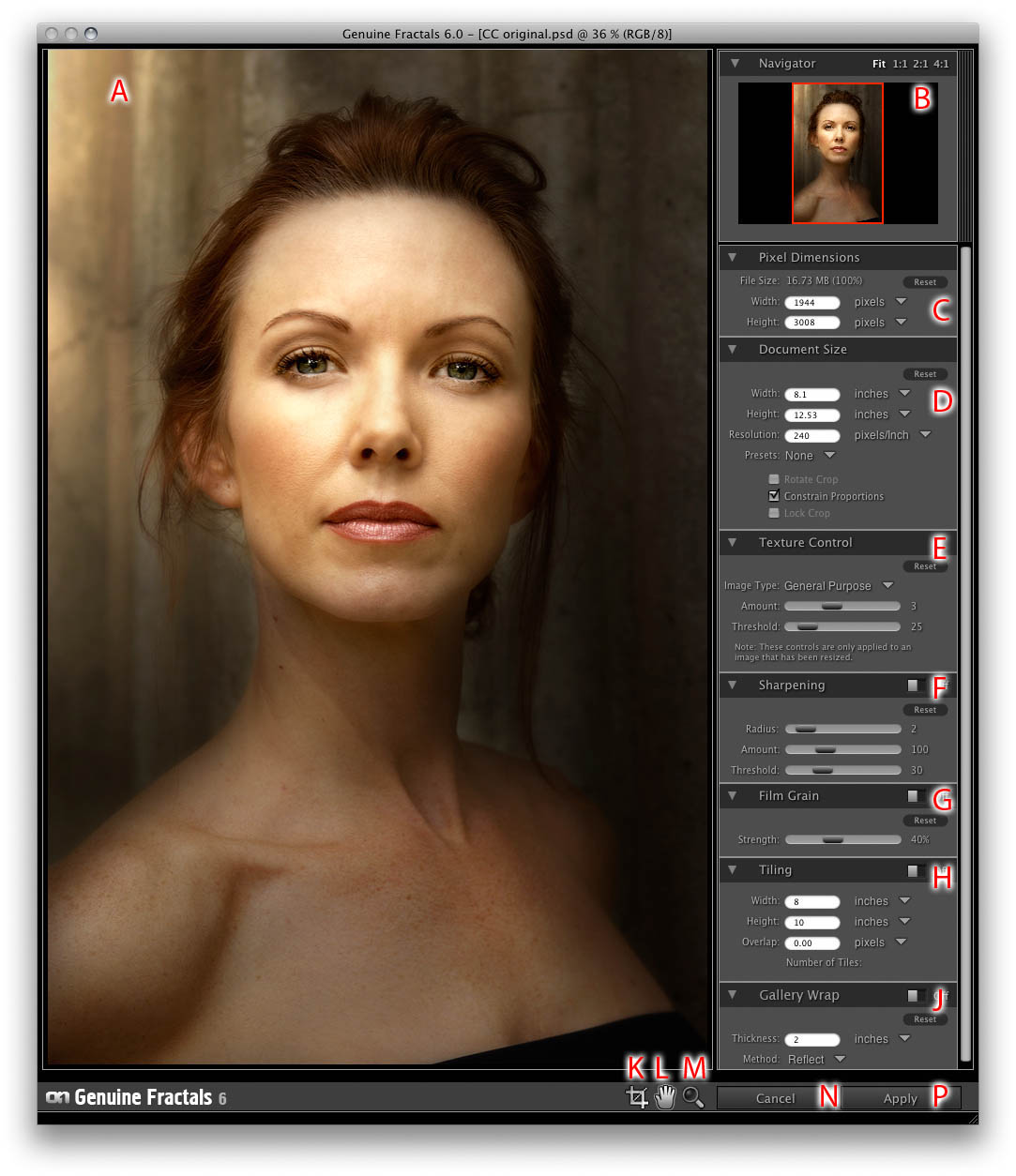
A - Preview Window: Displays your image.
B - Navigator Pane: Displays a birds-eye view of your image. You can use the navigator to adjust the zoom and pan of the the preview window.
C - Pixel Dimensions Pane: Displays the pixel dimensions, MB size and scaling percentage. You can adjust the pixel dimensions here as well.
D - Document Size Pane: Displays the document print size and resolution. You can adjust the print size and resolution as well.
E - Texture Control Pane: Contains the texture controls, allows you to adjust the way the algorithm reproduces the texture areas of the image.
F - Sharpening Control Pane: - Contains the sharpening controls, allows you to add sharpening before printing.
G - Film Grain Pane: Contains the film grain control for adding simulated film grain which can increase the perceived sharpness of the image.
H - Tiling Pane: Contains the tile controls. Allows you break an image into smaller tiles to allow mosaic printing on a smaller printer.
J - Gallery Wrap Pane: Contains the gallery wrap controls for adding margins to your image when printing on canvas.
K - Crop Tool: Use this tool to manually crop your image or adjust the size and position of a document size preset.
L - Pan Tool: Use this tool to reposition your image inside the preview window.
M - Zoom Tool: Use this tool to zoom-in or zoom-out in the preview window.
N - Cancel Button: Press the cancel button to cancel Genuine Fractals and return to the host application with the image unaltered.
P - Apply Button: Press the apply button to apply your current settings and return the altered image to the host application.
See also