Home > Using Genuine Fractals > Texture Control
Texture Control
|
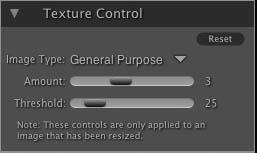
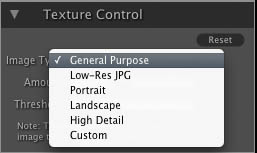
If you were to analyze an image from a detail perspective, you could break it into three categories: Edges, Continuous Tone and Textures. Edges are obvious, these are the sharp details that define the edges of the subject in your image. Its paramount that these are maintained in order for your enlargement to maintain quality. The continuous tone areas are things like skin or sky that are mostly solid or graduated color. These resize easily as there is little detail in these areas. The last area, what we call texture is areas that fall between these two. They are areas that still contain detail but are not sharp edges. These are things like the surface of rocks, tree bark, fabric, animal fur, etc. The amount of detail in these texture areas can have a large impact on the perceived sharpness and quality of an image. In Genuine Fractals, you have the ability to control the key algorithm variables that effect these areas. There are presets for different image types and subject matters that help you get the best results in reproducing these texture areas. Below is a description of each control and recommendations of how to use them. Image Type: Threshold: This controls the amount of hard edge detail that is enhanced. The default setting is 25. Decreasing the threshold will focus the algorithms only on edge information. This may be useful for portraiture or for reducing noise in your image. Settings higher than 25 will increase the amount of small detail in flatter areas of the image.Settings as high as 100 are useful for highly detailed images such as hair or feathers. Higher threshold settings will also make Genuine Fractals process faster.A good way to start adjusting these controls is by setting the threshold to 100 and then move the amount up until the image is too noisy (bumpy) and then reduce the threshold to smooth out the noise in continuous tone areas. For detailed images with no little continuous tone you might try the Amount at 4 and the Threshold at 100. For portrait images or images with significant JPG artifacts you should try an Amount of 2-3 and Threshold of 25 or lower. |
  |
See also