Home > Using Genuine Fractals > Adjusting the Image Size
Adjusting the Image Size
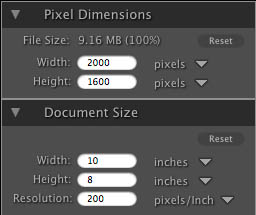
In Genuine Fractals you can adjust your image size using either the Pixel Dimensions or Document Size panes. The information in these panes are inter-related and locked together. Adjusting the values in either pane will result in changes in the other pane. To help explain this lets use the example below.
| The original image is 10”x8” at a resolution of 200 pixels per inch. Notice that the pixel dimensions are 2000 x 1600 pixels.
|
 |
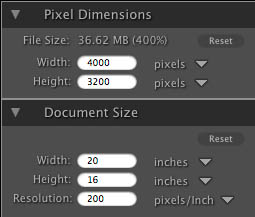
| By changing the width to 20” the height changes to 16” proportionally and automatically and the new pixel dimensions change to 4000 x 3200 pixels. Note the resolution does not change.
Note the the file size and percentage have changed as well. |
 |
Follow these steps to adjust the size of your image to what is desired for your output file.
- Launch Genuine Fractals 6.
- Adjust width in the Document Size pane to your desired width. Note that the height will adjust automatically and proportionally.
- If needed, adjust the Resolution in the Document Size pane to what your printer or other output device needs. See this chart if you don't know for more information.
- Press Apply.
If your image is not going to be printed, but will be principally displayed on a computer or television you may not be concerned with the document size but only the pixel dimensions. In these cases use these steps.
- Launch Genuine Fractals 6.
- Adjust the width in the Pixel Dimension pane to your desired width. Note that the height will adjust automatically and proportionally.
- If needed, adjust the resolution to 72 or 96 ppi.
- Press Apply.
 |
Tip: Using Document Size Presets is the fastest way to get common sizes. They let you crop and resize your image at the same time. Keep the proportions in mind because the proportions of films, digital camera sensors and papers can all be different. For example most digital cameras sensors are proportioned so that the height is two thirds the width or 1:1.5; While the most common paper size, in the US, is letter which is 8.5x11 inches or a about 1:1.25. These kinds of proportion mis-matches are common and require that the original image be cropped to fit the proportions of the paper size. If your image cannot be cropped without ruining the composition then you will need to adjust your print size to longer dimension. |
|
Tip: The constrain proportions option locks the original image proportions so that when you change a value, like width, in the Pixel Dimensions or Document Size Preset panes the height will adjust automatically. This function is on by default and is always recommenced to use. By turning Constrain Proportions off you can inadvertently stretch and distort your image. |
See also