Home > Using FocalPoint 2 > Vignette Pane
Vignette Pane
| The Vignette pane is located under the MaskingBrush pane. It contains the controls for adding realistic vignettes to an image. Adding a vignette is a classic method for focusing the viewers eye on the subject. Lightness: The lightness slider controls the amount and brightness of the vignette. At the neutral position in the middle of the slider there is no vignette. If you move the slider to a the left, selecting a value of less that 50% will add a dark vignette. At a value of 0%, the vignette will be completely black. If you move the slider to the right, selecting a value higher than 50% you will add a white vignette. You can also control the Lightness by adjusting the angle of the left antenna on the FocusBug. Midpoint: The midpoint slider controls the relative size of the vignette in relation to the sweet-spot. Low values add a large vignette that is tight around the sweet-spot. Large values add a smaller vignette that only effects the edge of the image. You can also control the Midpoint by adjusting the length of the left antenna on the FocusBug. Overlay Blending: When enabled, the vignette will blend in naturally with the image and will act more like a burn or dodge. Even at the maximum setting the vignetted area will not be pure white or black. Vignette Follows FocusBug: When enabled, the vignette will follow the first (bottom) FocusBug. That means if your subject is off-centered, the vignette will be as well. The size and shape of the vignette will match the FocusBug. When this option is turned off the vignette will be a natural vignette that is shaped like the entire image and only effects the four corners. | 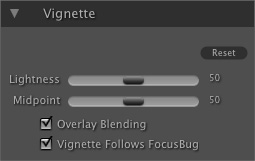 |
See also