Home > Using FocalPoint 2 > Using the FocusBug > Using Selections from Photoshop
Using Selections from Photoshop
FocalPoint supports selections created in Photoshop. This allows you to blur backgrounds behind complex shapes such as people, even with hair or mesh. You can use any of Photoshop's selection tools and techniques as well as other masking tools such as Mask Pro. Be sure your selection is the area you wish to blur, not the subject you do not want to blur.| To use a selection with FocalPoint, follow these instructions. 1. Open your image in Photoshop and use any of Photoshop's tools to select your subject area. | 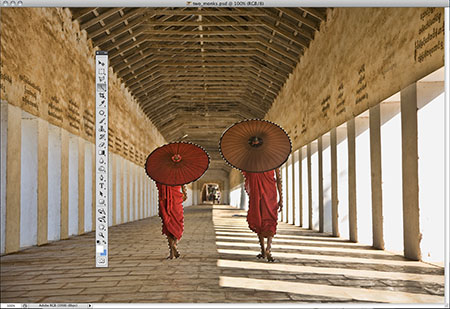 |
| 2. Invert your selection by going to Select > Invert. | 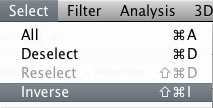 |
| 3. Launch FocalPoint 2. You can confirm your selection by toggling mask view on. Make sure the use Photoshop Selection option is enabled. | 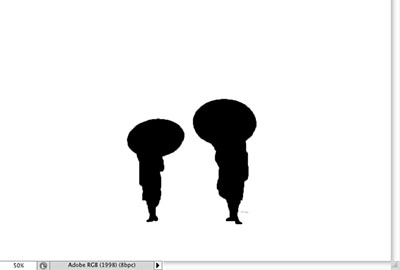 |
 | FocalPoint will only use the area in your selection when creating a blur. This prevents any halos of your subject in the blurred area. This does require a precise selection. If you encounter any halo around your subject in the preview area, use the FocusBrush near the edge of the subject to paint away the blur, which will remove any halo. You can also modify your selection in Photoshop to ensure that all of your subject is selected. |
See also