Home > Getting Started > Opening FocalPoint
Opening FocalPoint
Opening FocalPoint in Photoshop
- When you use FocalPoint inside of Photoshop you need to open an image first.
- When you have the image you would like to work on be sure to select the layer that you would like to start with.
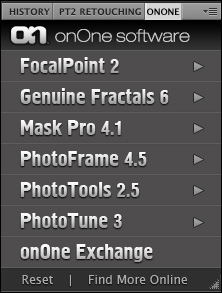
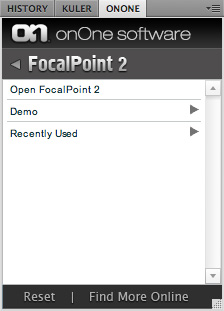
| onOne Panel and Menu The onOne Panel is a special dockable Panel that will appear inside of Photoshop CS4 and higher. The onOne Panel provides access to any of your onOne products including FocalPoint 2 that have been released as part of Plug-In Suite 5 or later. You can open FocalPoint or apply your saved presets, including your recently used presets directly from this menu.
|   |

| | |||
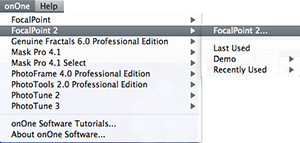
The onOne menu is a special menu that will appear in the menu bar in
Photoshop between the Window and Help menu. From the onOne menu have
access to any of your onOne products including FocalPoint. You can open
FocalPoint or apply your saved presets, including
your last used settings directly from this menu.
|  |
Opening FocalPoint in Photoshop Lightroom
- When you use FocalPoint inside of Photoshop Lightroom you need to select an image or group of images to start.
- Then select FocalPoint 2 for the File > Plug-In extras menu.
- Then select the open button.
Note: You can also access FocalPoint from the Lightroom Export dialog for batch processing.
Opening FocalPoint in Aperture
- When you use FocalPoint inside of Aperture you need to select an image first.
- Then select FocalPoint 2 from the Images > Edit with menu.
- Then select the open button.
Note: You can also access FocalPoint from the contextual menu by right-clicking (control-clicking) on an image and selecting Edit with > FocalPoint 2.
See also