Home > Getting Started > Supported File Types
Supported File Types
FocalPoint supports any 8 or 16 bit RGB file that can be opened by Adobe® Photoshop®. This includes Jpeg, PSD and TIF as well as Raw files from digital cameras and many other formats. If you routinely work in Grayscale or CMYK, simply convert your image RGB before using FocalPoint.
By default, FocalPoint works on a copy of the current layer. This is designed
for use in page layouts like creating albums or when your image contains a single layer with no transparency. This mode is intended for advanced
users. You may also, through the preferences, have FocalPoint function on a merged duplicate layer. That means it will create a new layer above your target layer that contains all of the information in the layers below it.
Using FocalPoint as a Smart Filter
FocalPoint will always create a new layer when it is applied to maintain your original image data. The only exception to this rule is if your target layer is a Smart Object. FocalPoint can function as a Smart Filter on a Smart Objects. Smart Filters work like an adjustment layer. They allow you to apply FocalPoint in a non-destructive, re-editable way. To use FocalPoint as a Smart Filter follow these steps.
1. Convert to your target layer to SmartObject if it is not already. You can do this easily by going to the Filter menu and selecting the Convert for Smart Filters option. | 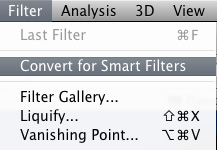 |
| 2. Launch FocalPoint and use it normally. | |
3. When you return to Photoshop you will see FocalPoint added as a SmartFilter. From the layers palette in Photoshop you can turn FocalPoint on or off as well as double-click on it to re-edit its settings. | 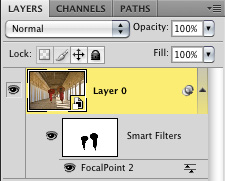 |
 | Note: You can use the FocusBrush on Smart Objects but if you re-edit the settings for FocalPoint the brush strokes will be lost. |
Using Selections
FocalPoint will use selections that you create in Photoshop or with Mask Pro. This allows you to create complex selections or masks that deal with difficult subjects like hair. FocalPoint will automatically use your selection if one is active. FocalPoint will even prevent blurred halos around your subject.
See also